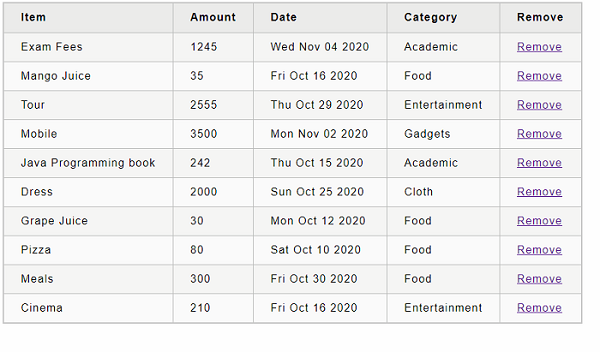
# ReactJS - Http Client Programming
Http client programming enables the application to connect and fetch data from http server through JavaScript. It reduces the data transfer between client and server as it fetches only the required data instead of the whole design and subsequently improves the network speed. It improves the user experience and becomes an indispensable feature of every modern web application.
Nowadays, lot of server side application exposes its functionality through REST API (functionality over HTTP protocol) and allows any client application to consume the functionality.
React does not provide it’s own http programming api but it supports browser’s built-in *fetch()* api as well as third party client library like axios to do client side programming. Let us learn how to do http programming in React application in this chapter. Developer should have a basic knowledge in Http programming to understand this chapter.
## Expense Rest Api Server
The prerequisite to do Http programming is the basic knowledge of Http protocol and REST API technique. Http programming involves two part, server and client. React provides support to create client side application. Express a popular web framework provides support to create server side application.
Let us first create a Expense Rest Api server using express framework and then access it from our *ExpenseManager* application using browser’s built-in fetch api.
Open a command prompt and create a new folder, *express-rest-api*.
```
cd /go/to/workspace
mkdir apiserver
cd apiserver
```
Initialize a new node application using the below command −
```
npm init
```
The *npm init* will prompt and ask us to enter basic project details. Let us enter *apiserver* for project name and *server.js* for entry point. Leave other configuration with default option.
```
This utility will walk you through creating a package.json file.
It only covers the most common items, and tries to guess sensible defaults.
See `npm help json` for definitive documentation on these fields and exactly what they do.
Use `npm install ` afterwards to install a package and
save it as a dependency in the package.json file.
Press ^C at any time to quit.
package name: (apiserver)
version: (1.0.0)
description: Rest api for Expense Application
entry point: (index.js) server.js
test command:
git repository:
keywords:
author:
license: (ISC)
About to write to \path\to\workspace\expense-rest-api\package.json:
{
"name": "expense-rest-api",
"version": "1.0.0",
"description": "Rest api for Expense Application",
"main": "server.js",
"scripts": {
"test": "echo \"Error: no test specified\" && exit 1"
},
"author": "",
"license": "ISC"
}
Is this OK? (yes) yes
```
Next, install *express, nedb & cors* modules using below command −
```
npm install express nedb cors
```
- *express* is used to create server side application.
- *nedb* is a datastore used to store the expense data.
- *cors* is a middleware for *express* framework to configure the client access details.
Next, let us create a file, data.csv and populate it with initial expense data for testing purposes. The structure of the file is that it contains one expense entry per line.
```
Pizza,80,2020-10-10,Food
Grape Juice,30,2020-10-12,Food
Cinema,210,2020-10-16,Entertainment
Java Programming book,242,2020-10-15,Academic
Mango Juice,35,2020-10-16,Food
Dress,2000,2020-10-25,Cloth
Tour,2555,2020-10-29,Entertainment
Meals,300,2020-10-30,Food
Mobile,3500,2020-11-02,Gadgets
Exam Fees,1245,2020-11-04,Academic
```
Next, create a file *expensedb.js* and include code to load the initial expense data into the data store. The code checks the data store for initial data and load only if the data is not available in the store.
```
var store = require("nedb")
var fs = require('fs');
var expenses = new store({ filename: "expense.db", autoload: true })
expenses.find({}, function (err, docs) {
if (docs.length == 0) {
loadExpenses();
}
})
function loadExpenses() {
readCsv("data.csv", function (data) {
console.log(data);
data.forEach(function (rec, idx) {
item = {}
item.name = rec[0];
item.amount = parseFloat(rec[1]);
item.spend_date = new Date(rec[2]);
item.category = rec[3];
expenses.insert(item, function (err, doc) {
console.log('Inserted', doc.item_name, 'with ID', doc._id);
})
})
})
}
function readCsv(file, callback) {
fs.readFile(file, 'utf-8', function (err, data) {
if (err) throw err;
var lines = data.split('\r\n');
var result = lines.map(function (line) {
return line.split(',');
});
callback(result);
});
}
module.exports = expenses
```
Next, create a file, *server.js* and include the actual code to list, add, update and delete the expense entries.
```
var express = require("express")
var cors = require('cors')
var expenseStore = require("./expensedb.js")
var app = express()
app.use(cors());
var bodyParser = require("body-parser");
app.use(bodyParser.urlencoded({ extended: false }));
app.use(bodyParser.json());
var HTTP_PORT = 8000
app.listen(HTTP_PORT, () => {
console.log("Server running on port %PORT%".replace("%PORT%", HTTP_PORT))
});
app.get("/", (req, res, next) => {
res.json({ "message": "Ok" })
});
app.get("/api/expenses", (req, res, next) => {
expenseStore.find({}, function (err, docs) {
res.json(docs);
});
});
app.get("/api/expense/:id", (req, res, next) => {
var id = req.params.id;
expenseStore.find({ _id: id }, function (err, docs) {
res.json(docs);
})
});
app.post("/api/expense/", (req, res, next) => {
var errors = []
if (!req.body.item) {
errors.push("No item specified");
}
var data = {
name: req.body.name,
amount: req.body.amount,
category: req.body.category,
spend_date: req.body.spend_date,
}
expenseStore.insert(data, function (err, docs) {
return res.json(docs);
});
})
app.put("/api/expense/:id", (req, res, next) => {
var id = req.params.id;
var errors = []
if (!req.body.item) {
errors.push("No item specified");
}
var data = {
_id: id,
name: req.body.name,
amount: req.body.amount,
category: req.body.category,
spend_date: req.body.spend_date,
}
expenseStore.update( { _id: id }, data, function (err, docs) {
return res.json(data);
});
})
app.delete("/api/expense/:id", (req, res, next) => {
var id = req.params.id;
expenseStore.remove({ _id: id }, function (err, numDeleted) {
res.json({ "message": "deleted" })
});
})
app.use(function (req, res) {
res.status(404);
});
```
Now, it is time to run the application.
```
npm run start
```
Next, open a browser and enter *http://localhost:8000/* in the address bar.
```
{
"message": "Ok"
}
```
It confirms that our application is working fine.
Finally, change the url to *http://localhost:8000/api/expense* and press enter. The browser will show the initial expense entries in JSON format.
```
[
...
{
"name": "Pizza",
"amount": 80,
"spend_date": "2020-10-10T00:00:00.000Z",
"category": "Food",
"_id": "5H8rK8lLGJPVZ3gD"
},
...
]
```
Let us use our newly created expense server in our Expense manager application through *fetch()* api in the upcoming section.
## The fetch() api
Let us create a new application to showcase client side programming in React.
First, create a new react application, *react-http-app* using *Create React App* or *Rollup* bundler by following instruction in *Creating a React application* chapter.
Next, open the application in your favorite editor.
Next, create *src* folder under the root directory of the application.
Next, create *components* folder under src folder.
Next, create a file, *ExpenseEntryItemList.css* under *src/components* folder and include generic table styles.
```
html {
font-family: sans-serif;
}
table {
border-collapse: collapse;
border: 2px solid rgb(200,200,200);
letter-spacing: 1px;
font-size: 0.8rem;
}
td, th {
border: 1px solid rgb(190,190,190);
padding: 10px 20px;
}
th {
background-color: rgb(235,235,235);
}
td, th {
text-align: left;
}
tr:nth-child(even) td {
background-color: rgb(250,250,250);
}
tr:nth-child(odd) td {
background-color: rgb(245,245,245);
}
caption {
padding: 10px;
}
tr.highlight td {
background-color: #a6a8bd;
}
```
Next, create a file, *ExpenseEntryItemList.js* under *src/components* folder and start editing.
Next, import *React* library.
```
import React from 'react';
```
Next, create a class, ExpenseEntryItemList and call constructor with props.
```
class ExpenseEntryItemList extends React.Component {
constructor(props) {
super(props);
}
}
```
Next, initialize the state with empty list in the constructor.
```
this.state = {
isLoaded: false,
items: []
}
```
Next, create a method, *setItems* to format the items received from remote server and then set it into the state of the component.
```
setItems(remoteItems) {
var items = [];
remoteItems.forEach((item) => {
let newItem = {
id: item._id,
name: item.name,
amount: item.amount,
spendDate: item.spend_date,
category: item.category
}
items.push(newItem)
});
this.setState({
isLoaded: true,
items: items
});
}
```
Next, add a method, *fetchRemoteItems* to fetch the items from the server.
```
fetchRemoteItems() {
fetch("http://localhost:8000/api/expenses")
.then(res => res.json())
.then(
(result) => {
this.setItems(result);
},
(error) => {
this.setState({
isLoaded: false,
error
});
}
)
}
```
Here,
- *fetch* api is used to fetch the item from the remote server.
- *setItems* is used to format and store the items in the state.
Next, add a method, *deleteRemoteItem* to delete the item from the remote server.
```
deleteRemoteItem(id) {
fetch('http://localhost:8000/api/expense/' + id, { method: 'DELETE' })
.then(res => res.json())
.then(
() => {
this.fetchRemoteItems()
}
)
}
```
Here,
- *fetch* api is used to delete and fetch the item from the remote server.
- *setItems* is again used to format and store the items in the state.
Next, call the *componentDidMount* life cycle api to load the items into the component during its mounting phase.
```
componentDidMount() {
this.fetchRemoteItems();
}
```
Next, write an event handler to remove the item from the list.
```
handleDelete = (id, e) => {
e.preventDefault();
console.log(id);
this.deleteRemoteItem(id);
}
```
Next, write the render method.
```
render() {
let lists = [];
if (this.state.isLoaded) {
lists = this.state.items.map((item) =>
Finally, export the component.
```
export default ExpenseEntryItemList;
```
Next, create a file, *index.js* under the *src* folder and use *ExpenseEntryItemList* component.
```
import React from 'react';
import ReactDOM from 'react-dom';
import ExpenseEntryItemList from './components/ExpenseEntryItemList';
ReactDOM.render(
,
document.getElementById('root')
);
```
Finally, create a *public* folder under the root folder and create *index.html* file.
```
React App
```
Next, open a new terminal window and start our server application.
```
cd /go/to/server/application
npm start
```
Next, serve the client application using npm command.
```
npm start
```
Next, open the browser and enter *http://localhost:3000* in the address bar and press enter.
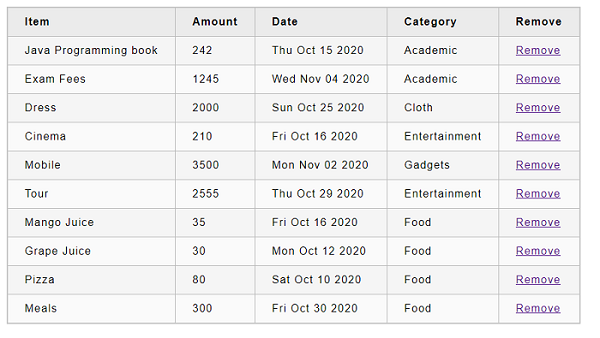
Try to remove the item by clicking the remove link.