# Git - Fix Mistakes
To err is human. So every VCS provides a feature to fix mistakes until a certain point. Git provides a feature that we can use to undo the modifications that have been made to the local repository.
Suppose the user accidentally does some changes to his local repository and then wants to undo these changes. In such cases, the **revert** operation plays an important role.
## Revert Uncommitted Changes
Let us suppose Jerry accidentally modifies a file from his local repository. But he wants to undo his modification. To handle this situation, we can use the **git checkout** command. We can use this command to revert the contents of a file.
```
[jerry@CentOS src]$ pwd
/home/jerry/jerry_repo/project/src
[jerry@CentOS src]$ git status -s
M string_operations.c
[jerry@CentOS src]$ git checkout string_operations.c
[jerry@CentOS src]$ git status –s
```
Further, we can use the **git checkout** command to obtain a deleted file from the local repository. Let us suppose Tom deletes a file from the local repository and we want this file back. We can achieve this by using the same command.
```
[tom@CentOS src]$ pwd
/home/tom/top_repo/project/src
[tom@CentOS src]$ ls -1
Makefile
string_operations.c
[tom@CentOS src]$ rm string_operations.c
[tom@CentOS src]$ ls -1
Makefile
[tom@CentOS src]$ git status -s
D string_operations.c
```
Git is showing the letter **D** before the filename. This indicates that the file has been deleted from the local repository.
```
[tom@CentOS src]$ git checkout string_operations.c
[tom@CentOS src]$ ls -1
Makefile
string_operations.c
[tom@CentOS src]$ git status -s
```
**Note** − We can perform all these operations before commit.
## Remove Changes from Staging Area
We have seen that when we perform an add operation, the files move from the local repository to the stating area. If a user accidently modifies a file and adds it into the staging area, he can revert his changes, by using the **git checkout** command.
In Git, there is one HEAD pointer that always points to the latest commit. If you want to undo a change from the staged area, then you can use the git checkout command, but with the checkout command, you have to provide an additional parameter, i.e., the HEAD pointer. The additional commit pointer parameter instructs the git checkout command to reset the working tree and also to remove the staged changes.
Let us suppose Tom modifies a file from his local repository. If we view the status of this file, it will show that the file was modified but not added into the staging area.
```
tom@CentOS src]$ pwd
/home/tom/top_repo/project/src
# Unmodified file
[tom@CentOS src]$ git status -s
# Modify file and view it’s status.
[tom@CentOS src]$ git status -s
M string_operations.c
[tom@CentOS src]$ git add string_operations.c
```
Git status shows that the file is present in the staging area, now revert it by using the git checkout command and view the status of the reverted file.
```
[tom@CentOS src]$ git checkout HEAD -- string_operations.c
[tom@CentOS src]$ git status -s
```
## Move HEAD Pointer with Git Reset
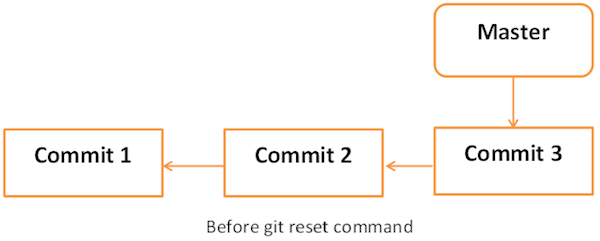
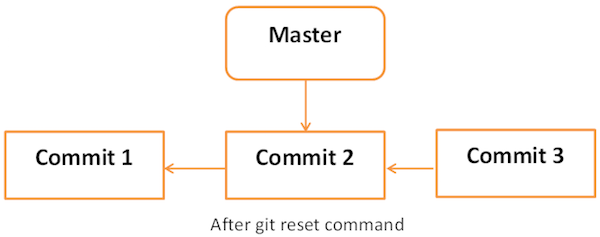
After doing few changes, you may decide to remove these changes. The Git reset command is used to reset or revert changes. We can perform three different types of reset operations.
Below diagram shows the pictorial representation of Git reset command.
### Soft
Each branch has a HEAD pointer, which points to the latest commit. If we use Git reset command with --soft option followed by commit ID, then it will reset the HEAD pointer only without destroying anything.
**.git/refs/heads/master** file stores the commit ID of the HEAD pointer. We can verify it by using the **git log -1** command.
```
[jerry@CentOS project]$ cat .git/refs/heads/master
577647211ed44fe2ae479427a0668a4f12ed71a1
```
Now, view the latest commit ID, which will match with the above commit ID.
```
[jerry@CentOS project]$ git log -2
```
The above command will produce the following result.
```
commit 577647211ed44fe2ae479427a0668a4f12ed71a1
Author: Tom Cat
Date: Wed Sep 11 10:21:20 2013 +0530
Removed executable binary
commit 29af9d45947dc044e33d69b9141d8d2dad37cc62
Author: Jerry Mouse
Date: Wed Sep 11 10:16:25 2013 +0530
Added compiled binary
```
Let us reset the HEAD pointer.
```
[jerry@CentOS project]$ git reset --soft HEAD~
```
Now, we just reset the HEAD pointer back by one position. Let us check the contents of **.git/refs/heads/master file**.
```
[jerry@CentOS project]$ cat .git/refs/heads/master
29af9d45947dc044e33d69b9141d8d2dad37cc62
```
Commit ID from file is changed, now verify it by viewing commit messages.
```
jerry@CentOS project]$ git log -2
```
The above command will produce the following result.
```
commit 29af9d45947dc044e33d69b9141d8d2dad37cc62
Author: Jerry Mouse
Date: Wed Sep 11 10:16:25 2013 +0530
Added compiled binary
commit 94f7b26005f856f1a1b733ad438e97a0cd509c1a
Author: Jerry Mouse
Date: Wed Sep 11 10:08:01 2013 +0530
Added Makefile and renamed strings.c to string_operations.c
```
### mixed
Git reset with --mixed option reverts those changes from the staging area that have not been committed yet. It reverts the changes from the staging area only. The actual changes made to the working copy of the file are unaffected. The default Git reset is equivalent to the git reset -- mixed.
### hard
If you use --hard option with the Git reset command, it will clear the staging area; it will reset the HEAD pointer to the latest commit of the specific commit ID and delete the local file changes too.
Let us check the commit ID.
```
[jerry@CentOS src]$ pwd
/home/jerry/jerry_repo/project/src
[jerry@CentOS src]$ git log -1
```
The above command will produce the following result.
```
commit 577647211ed44fe2ae479427a0668a4f12ed71a1
Author: Tom Cat
Date: Wed Sep 11 10:21:20 2013 +0530
Removed executable binary
```
Jerry modified a file by adding single-line comment at the start of file.
```
[jerry@CentOS src]$ head -2 string_operations.c
/* This line be removed by git reset operation */
#include
```
He verified it by using the git status command.
```
[jerry@CentOS src]$ git status -s
M string_operations.c
```
Jerry adds the modified file to the staging area and verifies it with the git status command.
```
[jerry@CentOS src]$ git add string_operations.c
[jerry@CentOS src]$ git status
```
The above command will produce the following result.
```
# On branch master
# Changes to be committed:
# (use "git reset HEAD ..." to unstage)
#
#
modified: string_operations.c
#
```
Git status is showing that the file is present in the staging area. Now, reset HEAD with -- hard option.
```
[jerry@CentOS src]$ git reset --hard 577647211ed44fe2ae479427a0668a4f12ed71a1
HEAD is now at 5776472 Removed executable binary
```
Git reset command succeeded, which will revert the file from the staging area as well as remove any local changes made to the file.
```
[jerry@CentOS src]$ git status -s
```
Git status is showing that the file has been reverted from the staging area.
```
[jerry@CentOS src]$ head -2 string_operations.c
#include
```
The head command also shows that the reset operation removed the local changes too.