AWS - Relational Database Service
Amazon RDS (Relational Database Service) is a fully-managed SQL database cloud service that allows to create and operate relational databases. Using RDS you can access your files and database anywhere in a cost-effective and highly scalable way.
Features of Amazon RDS
Amazon RDS has the following features −
-
Scalable − Amazon RDS allows to scale the relational database by using AWS Management Console or RDS-specific API. We can increase or decrease your RDS requirements within minutes.
-
Host replacement − Sometimes these situations occur when the hardware of Amazon RDS fails. There is no need to worry, it will be automatically replaced by Amazon.
-
Inexpensive − Using Amazon RDS, we pay only for the resources we consume. There is no up-front and long-term commitment.
-
Secure − Amazon RDS provides complete control over the network to access their database and their associated services.
-
Automatic backups − Amazon RDS backs up everything in the database including transaction logs up to last five minutes and also manages automatic backup timings.
-
Software patching − Automatically gets all the latest patches for the database software. We can also specify when the software should be patched using DB Engine Version Management.
How to Set Up Amazon RDS?
Step 1 − Login to AWS management console. Use the following link to open Amazon RDS console − https://console.aws.amazon.com/rds/
Step 2 − Select the region where the DB instance is to be created, at the top right corner of the Amazon RDS console.
Step 3 − Select Instances in the navigation pane, then click Launch DB Instance button.
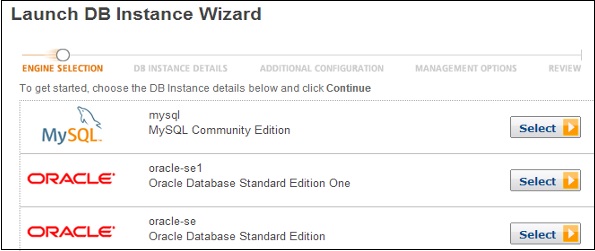
Step 4 − The Launch DB Instance Wizard opens. Select the type of instance as required to launch and click the Select button.
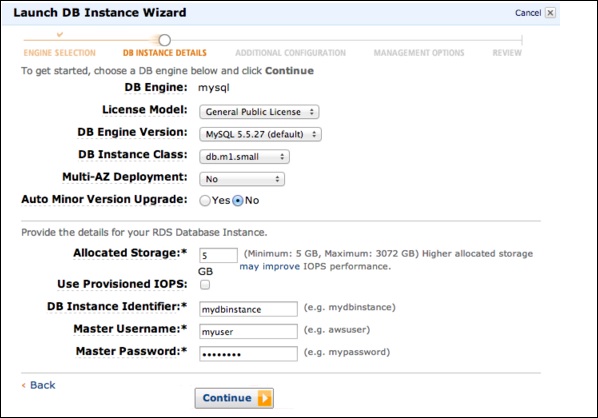
Step 5 − On the Specify DB Details page, provide the required details and click the Continue button.
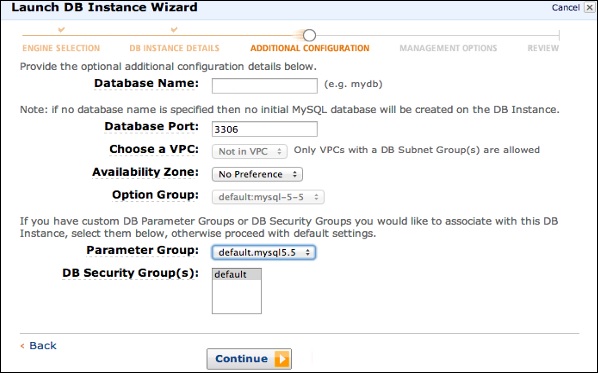
Step 6 − On the Additional configuration page, provide the additional information required to launch the MySQL DB instance and click the Continue button.
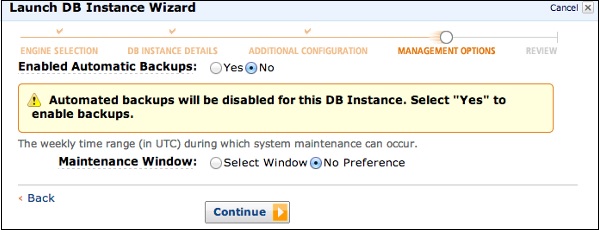
Step 7 − On Management options page, make the choices and click the Continue button.
Step 8 − On the Review page, verify the details and click the Launch DB Instance button.
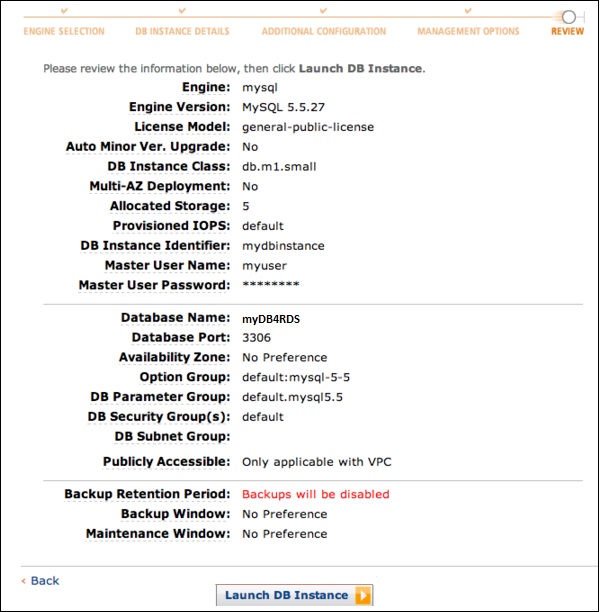
Now DB instance shows in the list of DB instances.
How to Connect Database to MySQL DB Instance?
Following are the steps to connect a database on MySQL DB instance −
Step 1 − Type the following command in the command prompt on a client computer to connect a database on MySQL DB instance (using the MySQL monitor).
Step 2 − Replace <myDBI> with DNS name of your DB instance, <myusername> with your master user-name & <mypassword> with your master password.
PROMPT> mysql -h <myDBI> -P 3306 -u <myusername> -p
After running the above command, the output looks like −
Welcome to the MySQL monitor.  Commands end with ; or \g.
Your MySQL connection id is 350
Server version: 5.2.33-log MySQL Community Server (GPL)
Type 'help;' or '\h' for help. Type '\c' to clear the buffer.
mysql>
How to Delete a DB Instance?
After completing the task, we should delete the DB instance so will not be charged for it. Follow these steps to delete a DB instance −
Step 1 − Sign in to the AWS Management Console and use the following link to open the Amazon RDS console.
https://console.aws.amazon.com/rds/
Step 2 − In the DB Instances list, select the DB instances to be deleted.
Step 3 − Click the Instance Actions button and then select the Delete option from the dropdown menu.
Step 4 − Select No in the Create Final Snapshot.
Step 5 − Click the Yes, Delete to delete the DB instance.
Cost of Amazon RDS
When using Amazon RDS, pay only for only the usage without any minimum and setup charges. Billing is based on the following criteria −
-
Instance class − Pricing is based on the class of the DB instance consumed.
-
Running time − Price is calculated by the instance-hour, which is equivalent to a single instance running per hour.
-
Storage − Bill is calculated as per the storage capacity plan chosen in terms of per GB.
-
I/O requests per month − Billing structure also includes total number of storage I/O requests made in a billing cycle.
-
Backup storage − There is no additional charges for backup storage up to 100% of database. This service is free only for active DB instances.
For latest updated price structure and other details, visit the following link − https://aws.amazon.com/rds/pricing/