Amazon Web Services - WorkSpaces
Amazon WorkSpaces is a fully managed desktop computing service in the cloud that allows its customers to provide cloud-based desktops to their end-users. Through this the end users can access the documents, applications, and resources using devices of their choice such as laptops, iPad, Kindle Fire, or Android tablets. This service was launched to meet its customers rising demand for Cloud based 'Desktop as a Service' (DaaS).
How It Works?
Each WorkSpace is a persistent Windows Server 2008 R2 instance that looks like Windows 7, hosted on the AWS cloud. Desktops are streamed to users via PCoIP and the data backed up will be taken on every 12 hours by default.
User Requirements
An Internet connection with TCP and UDP open ports is required at the user’s end. They have to download a free Amazon WorkSpaces client application for their device.
How to Create Amazon Workspaces?
Step 1 − Create and configure the VPC. (This we will discuss in detail in the VPC chapter.)
Step 2 − Create an AD Directory using the following steps.
-
Use the following link to open Amazon WorkSpace Console − https://console.aws.amazon.com/workspaces/
-
Select Directories, then Setup Directory in the navigation panel.
-
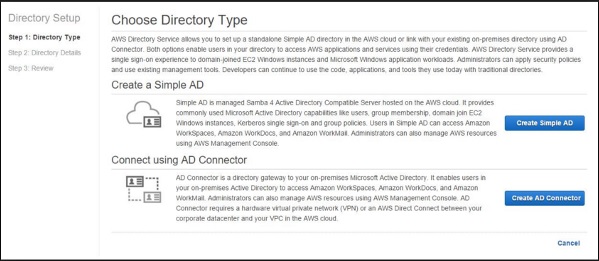
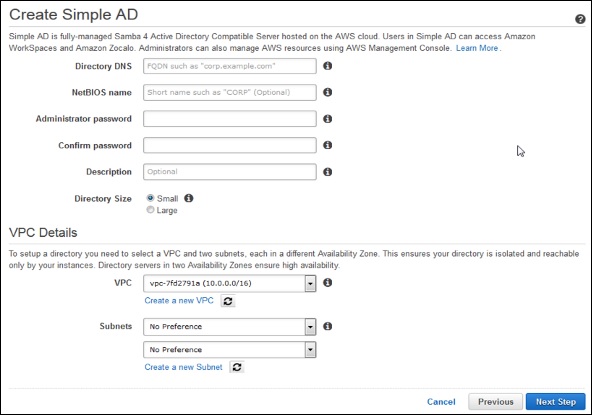
A new page will open. Select Create Simple AD button, then fill the required details.
-
In VPC section, fill the VPC details and select Next step.
-
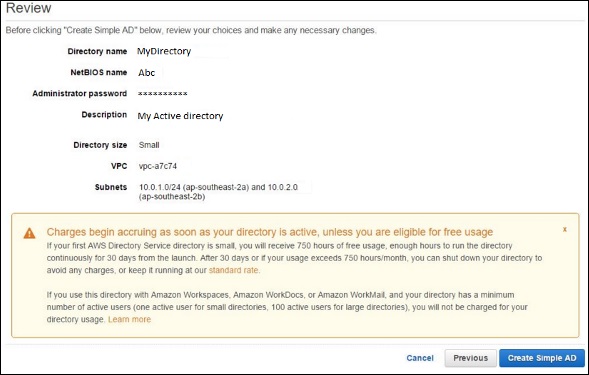
A review page will open to review the information. Make changes if incorrect, then click the Create Simple AD button.
Step 3 − Create a WorkSpace using the following steps.
-
Use the following link to open Amazon WorkSpace Console − https://console.aws.amazon.com/workspaces/
-
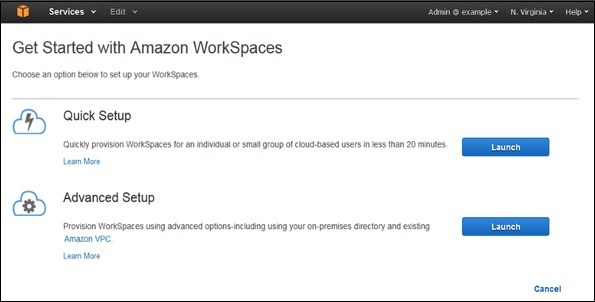
Select Workspaces and then launch WorkSpaces option in the navigation panel.
-
Select the cloud directory. Enable/disable WorkDocs for all users in this directory, then click the Yes, Next button.
-
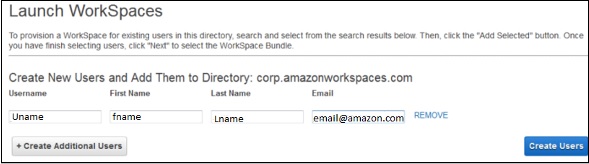
A new page will open. Fill the details for the new user and select the Create Users button. Once the user is added to the WorkSpace list, select Next.
-
Enter the number of bundles needed in the value field of WorkSpaces Bundles page, then select Next.
-
A review page will open. Check the details and make changes if required. Select Launch WorkSpaces.
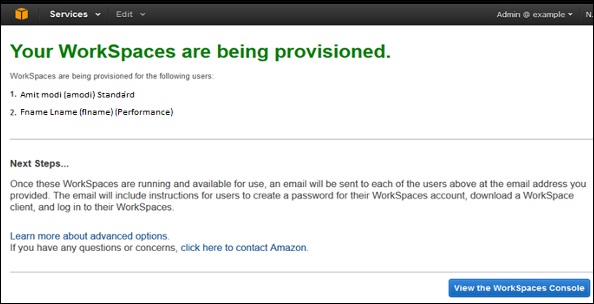
There will be a message to confirm the account, after which we can use WorkSpaces.
Step 4 − Test your WorkSpaces using the following steps.
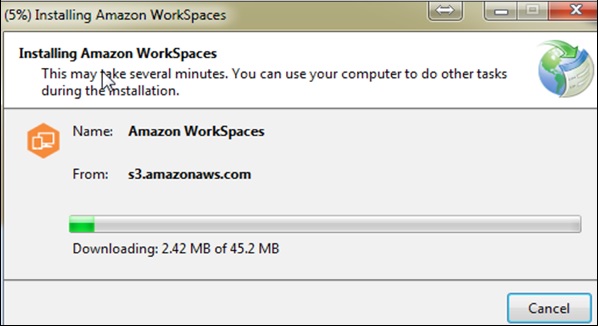
Download and install the Amazon WorkSpaces client application using the following link − https://clients.amazonworkspaces.com/.
-
Run the application. For the first time, we need to enter the registration code received in email and click Register.
-
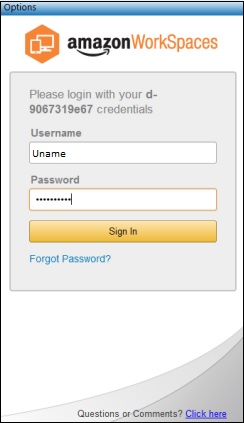
Connect to the WorkSpace by entering the user name and password for the user. Select Sign In.
-
Now WorkSpace desktop is displayed. Open this link http://aws.amazon.com/workspaces/ on THE web browser. Navigate and verify that the page can be viewed.
-
A message saying “Congratulations! Your Amazon WorkSpaces cloud directory has been created, and your first WorkSpace is working correctly and has Internet access” will be received.
Amazon WorkSpaces Features
Network Health Check-Up
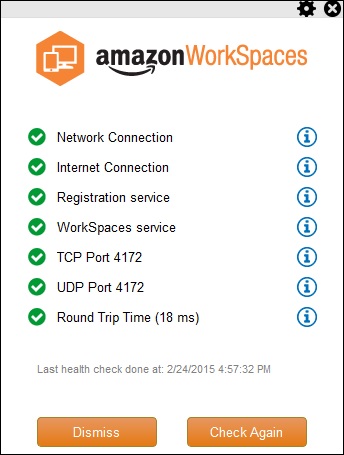
This AWS WorkSpaces feature verifies if the network and Internet connections are working, checks if WorkSpaces and their associated registration services are accessible, checks if the port 4172 is open for UDP and TCP access or not.
Client Reconnect
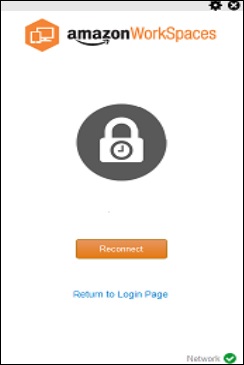
This AWS WorkSpaces feature allows the users to access to their WorkSpace without entering their credentials every time when they disconnect. The application installed at the client’s device saves an access token in a secure store, which is valid for 12 hours and uses to authenticate the right user. Users click on the Reconnect button on the application to get access on their WorkSpace. Users can disable this feature any time.
Auto Resume Session
This AWS WorkSpaces feature allows the client to resume a session that was disconnected due to any reason in network connectivity within 20 minutes (by default and can be extended for 4 hours). Users can disable this feature any time in group policy section.
Console Search
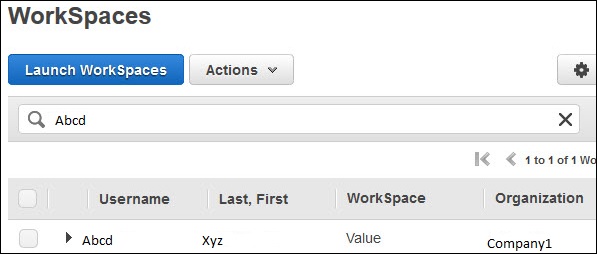
This feature allows Administrators to search for WorkSpaces by their user name, bundle type, or directory.
Benefits of Amazon WorkSpaces
-
Easy to set up − Customers can choose AWS WorkSpaces plans of their choice and provide requirements such as CPU type, memory, storage and applications, and number of desktops.
-
Choice of devices and applications − Customers can install Amazon WorkSpace application on their device (Laptops, iPads, Tablets) free of cost and can choose applications from the available list.
-
Cost-effective − Amazon WorkSpaces require no upfront commitment and the customers pay as they customize their desktop, on a monthly basis.